Release Notes 27.3.18849.0 | August 14, 2026
Requirements
Business Central application platform 27.3 or higher.
MDC web server files version 4.18860.0 (download the files here)
Enhancement
Improve Sorting Methods of Bin Content and Package Content
ID: 16004
Added a new field named Default Bin/Package Content Sorting Method to the Mobile Data Collection Setup page. The value of this field determines how inventory records are sorted when the Bin Content and Package Content pages are loaded.
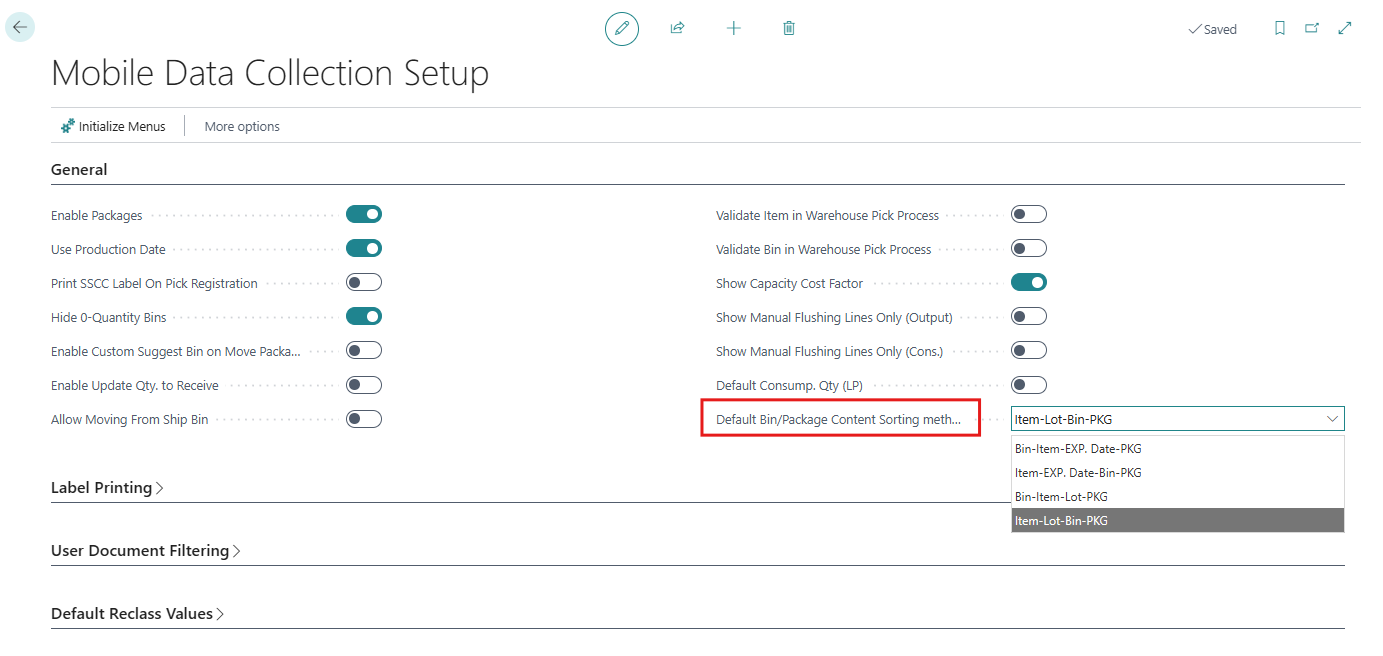
The following sorting methods are available:
- Bin-Item-EXP. Date-PKG
- Item-EXP. Date-Bin-PKG
- Bin-Item-Lot-PKG
- Item-Lot-Bin-PKG
The order of the values in each option represents the sorting priority. For example, when Bin-Item-EXP. Date-PKG is selected, records are sorted first by Bin Code. Within each bin, records are sorted by Item No. For the same item, records are then sorted by Expiration Date, with the earliest expiration date displayed first, and finally by Package No.
The sorting methods on the Bin Content and Package Content pages work as follows:
BIEP (Bin-Item-EXP. Date-PKG): Inventory records within the specified filters are sorted by Bin Code, then by Item No., followed by Expiration Date, with the earliest expiration date displayed first, and finally by Package No.
IEBP (Item-EXP. Date-Bin-PKG): Inventory records within the specified filters are sorted by Item No., then by Expiration Date, with the earliest expiration date displayed first, followed by Bin Code, and finally by Package No.
BILP (Bin-Item-Lot-PKG): Inventory records within the specified filters are sorted by Bin Code, then by Item No., followed by Lot No., and finally by Package No.
ILBP (Item-Lot-Bin-PKG): Inventory records within the specified filters are sorted by Item No., then by Lot No., followed by Bin Code, and finally by Package No.
Additionally, the Package Content page has been improved to display the Bin Code when the Show Details section for each package is expanded.
Inventory Calculation Improvement
ID: 16103
Enhanced Inventory Calculation > Add Inventory function to support inventory adjustment scenarios where an item has no inventory in the system.
Added a new Boolean field named Allow New Lot Adjustments to the Mobile Data Collection User Profile page. When this field is enabled, the user is allowed to add quantity either to new inventory or to a new lot for existing inventory.
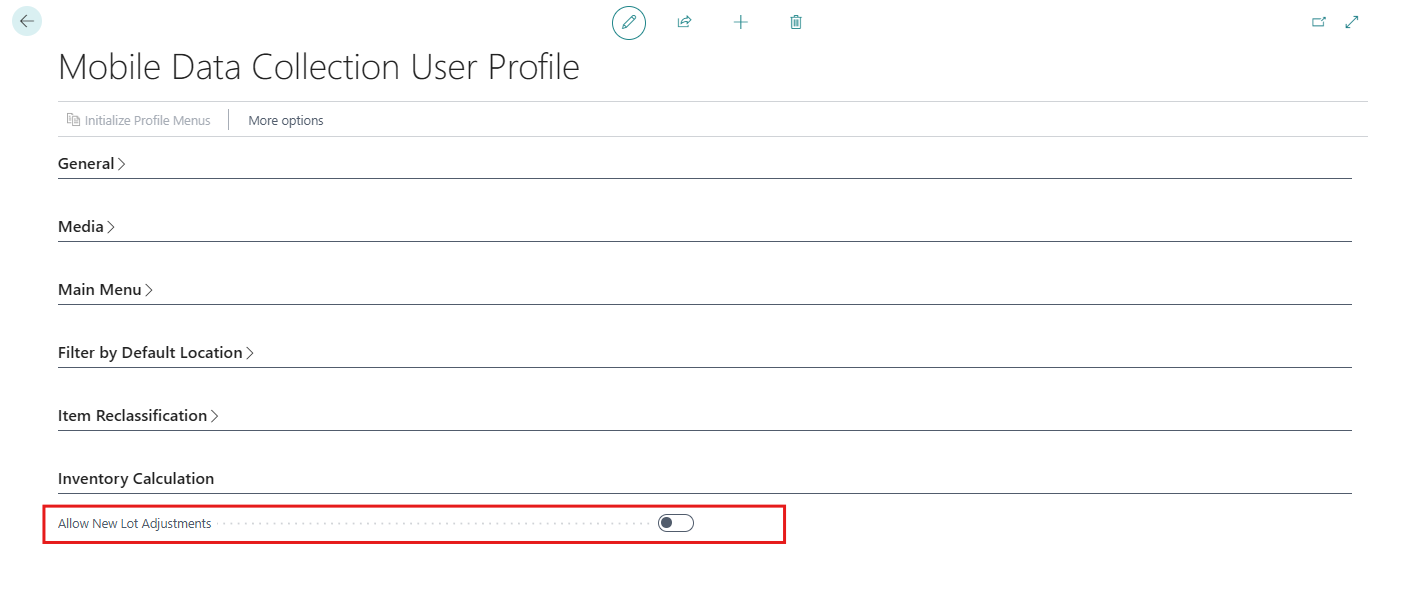
The Physical Inventory count process has also been enhanced. When an item with zero inventory is entered or scanned, the Add Inventory button is enabled.
When the user selects Add Inventory, the system guides the user through entering or scanning the required information in the following order:
- Unit of Measure
- Bin Code
- Quantity
- Depending on the Item Tracking Code assigned to the item:
- Lot No.
- Expiration Date
- Package No.
After the required information is entered or scanned, the user can post journal line.
Fixes
| ID | Description |
|---|---|
| 16120 | Resolved an issue with overriding the default production date determined by the corresponding Item Tracking Code. With this fix, when a user enters a Production Date on the Production Output page, the system uses the entered date as the Production Date, overriding the formula specified in the Default Output Production Date field of the corresponding Item Tracking Code. |
| 16141 | Resolved an issue where the Physical Inventory page could become blank after posting when no records remained on the page for adjustment.This issue could occur when there was only one line on the Physical Inventory page and the user performed a negative adjustment that reduced the quantity to zero. With this fix, the Physical Inventory page no longer becomes blank after posting in this scenario. |
| 18286 | Resolved an issue where selecting the Cancel button on the Physical Inventory pages navigated the user to the MDC Home page instead of returning to the first Physical Inventory Count page. With this fix, selecting Cancel returns the user to the first Physical Inventory Count page, where a new filter can be entered or scanned. |